Navigating the Interface
Learn your way around the DailyWorship platform
DailyWorship is designed to be simple and intuitive. Here's a tour of the main areas.
The Navigation Bar#
The navigation bar at the top of every page gives you quick access to:
- Home — Return to the main page
- Studio — Create new worship songs
- Library — Your saved songs and playlists
- Discover — Browse public songs
- Service Planner — Plan your worship services
- Notifications — Updates and alerts
- Profile — Your account settings
Main Sections#
Studio Tour#
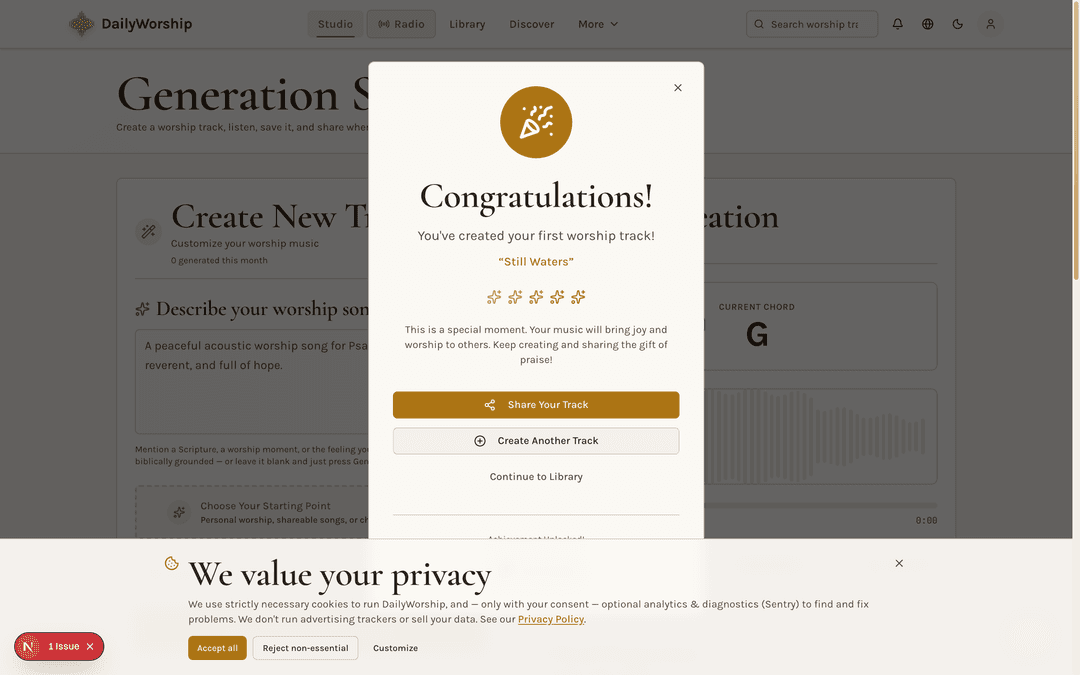
The Studio is your workspace for generating new worship songs. The tour image above reflects the current DailyWorship Studio layout:
- Describe your worship song — Start with a prompt: mention a Scripture, a worship moment, or the feeling you want. Leave it blank and press Generate if you prefer
- Choose Your Starting Point — Pick a preset (personal worship, shareable song, or group moment) to shape the result
- Customize title, theme & style — Expand to set the track name, worship theme, style, mood, key, and tempo
- Your Creation — After generation, listen to the track, view lyrics, follow chord progressions, and download or share the song
Library#
Your personal music collection. Here you can:
- View all saved songs
- Organize with playlists
- Access your favorites
- See listening history
Discover#
Explore music shared by the community. Filter by:
- Worship style
- Mood and tempo
- Scripture theme
- Season or occasion
Service Planner#
For worship leaders planning services:
- Create service plans
- Build setlists
- Add notes and transitions
- Export for your team
The Player Bar#
When music is playing, a player bar appears at the bottom of the screen:
- Play/Pause — Control playback
- Progress — Scrub through the song
- Volume — Adjust the volume
- Chords — Toggle on-screen chord display
- Queue — View upcoming songs
Quick Actions#
Look for these buttons throughout the app:
- Heart ❤️ — Add to favorites
- Plus ➕ — Add to playlist
- Download ⬇️ — Download the song
- Share 🔗 — Share with others
- More ⋯ — Additional options
Mobile Navigation#
On mobile devices, the navigation moves to the bottom of the screen for easy thumb access. Tap the menu icon (☰) to access additional options.
Keyboard Shortcuts#
Power users can navigate faster with keyboard shortcuts:
- Space — Play/Pause
- → — Skip forward
- ← — Skip backward
- M — Mute/Unmute
- L — Like song
- S — Save to library
Related Articles:
Was this article helpful?
Your feedback helps us improve our documentation.